
Record a Studio voice or camera explanation
Narrate a coaching clip with a microphone, with an optional camera view.
Prepare the clip
Open the Studio editor, arrange the footage, and check the section you want to explain. Position the playhead at the start of your explanation. Prepare player tracking before recording because Select Player is hidden during recording.
Choose a recording mode
Select Record, then choose Voice only for microphone audio or Voice + face for microphone and camera. Allow the browser to use the required devices when you want to record. Check your microphone and camera selection in the browser or system settings if the wrong device is active.
Wait for the countdown and recording indicator. Speak clearly, play the footage as needed, and use the drawing tools to explain what is happening. The recording toolbar's Pause tool holds a teaching moment while you speak.
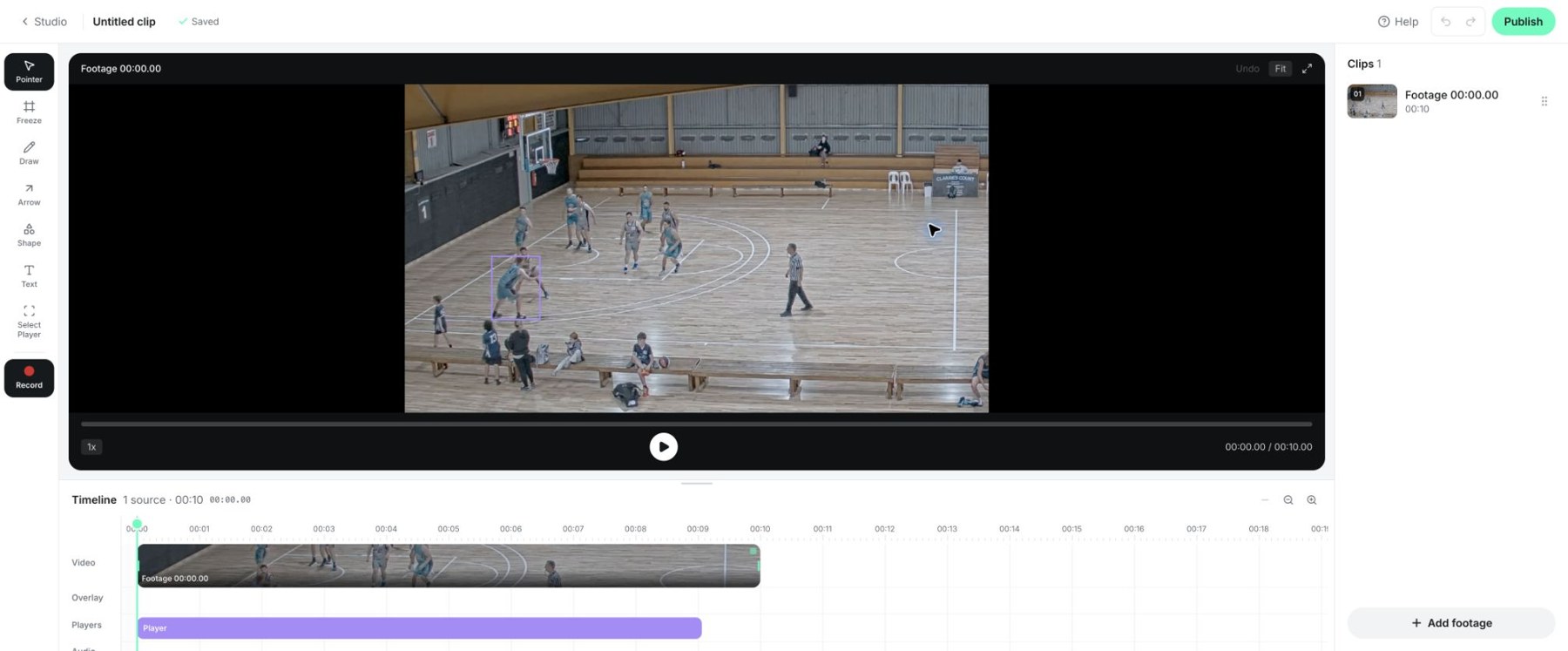
Studio's editor, footage, tools, and timeline.
Stop and review
Stop the recording when finished. Replay the full section to check timing, audio, and any face-camera overlay. Review the audio section of the timeline and remove or replace an unwanted take using the available controls.
Wait for saving to finish before leaving or publishing. If the recording upload fails, keep the page open and choose Retry upload. Use Download audio and, for a camera recording, Download camera to keep a copy before leaving. Discard removes the pending take; use it only if that take is no longer needed. Keep a recording short enough for the viewer to follow one coaching point at a time.
If recording is unavailable
Check browser microphone and camera permissions, make sure another application is not monopolising the device, and try again after the page is ready. Voice-only mode avoids a camera dependency. If recording fails, note the error and contact support with the clip title and browser.
Related guides
Was this helpful?