
Download clips, player highlights, and game footage
Choose an export from the match viewer and find completed downloads.
Choose what to download
Open a match and choose Download. The available options depend on your selection and access.
| Option | How to use it |
|---|---|
| Selected Clip | Select a play in the viewer first. |
| Selected Clips | Tick the desired clips in the Clips panel first. |
| Player Highlights | Choose the player whose plays you want. |
| Full Match | Download the available processed video files; shown to users with the required editing access. |
Create a clip export
Review the selected clips or player and the available output options, then start the export. A queued or rendering export needs time to finish. Use the ready notification or the export history to download the completed file.
The download control is unavailable when the chosen option has no eligible events. Return to Clips, adjust your filters or selection, and try again.
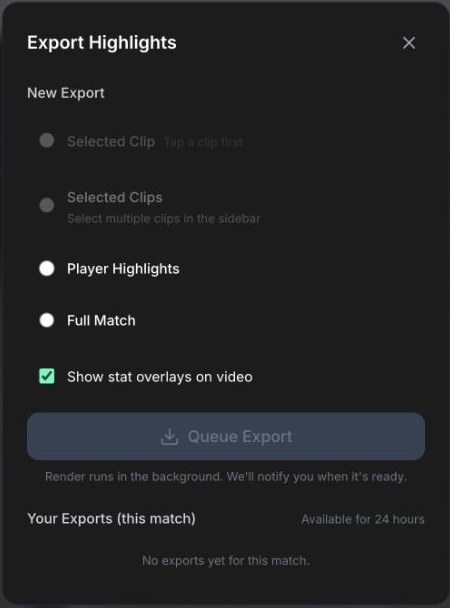
Download footage opens the export options. Select the required clips first.
Keep your source recordings
The Full Match option describes processed video files at 1080p and 30 fps. Keep your camera originals if you need master-quality footage. A processed download is not a replacement for your source archive.
Want a branded reel?
Use Highlights for player photos, club logos, score graphics, output sizes, and branded MP4 or ZIP exports. The match viewer's download flow is useful for reviewing and collecting the plays themselves.
Related guides
Was this helpful?