
Upload a match
Follow the five upload steps from footage to submission.

Before you begin
Select the correct team, prepare the footage and roster, and check that the club has an available upload entitlement. You need editing access to upload a game.
Complete the upload
- Open
Matchesand chooseUpload. - In
Footage, choose Full Game, Halves, or Quarters. Add a video to every required slot and review the consent statement. - In
Match Details, enter the opponent, both final scores, and the game date. Future dates are not accepted. - In
Roster, check the players and jersey numbers. Existing players can be filled from the team's roster; useAdd playerorAdd remaining teamas needed. Remove players who did not play. - In
Uniform Colours, select the colours your team wore in this game. - In
Summary, review the footage, game information, roster, and analysis option, then submit.
Footage can begin transferring while you complete the details. Keep this tab open and your connection available until the upload finishes. Do not assume that seeing a thumbnail means the file has finished uploading.
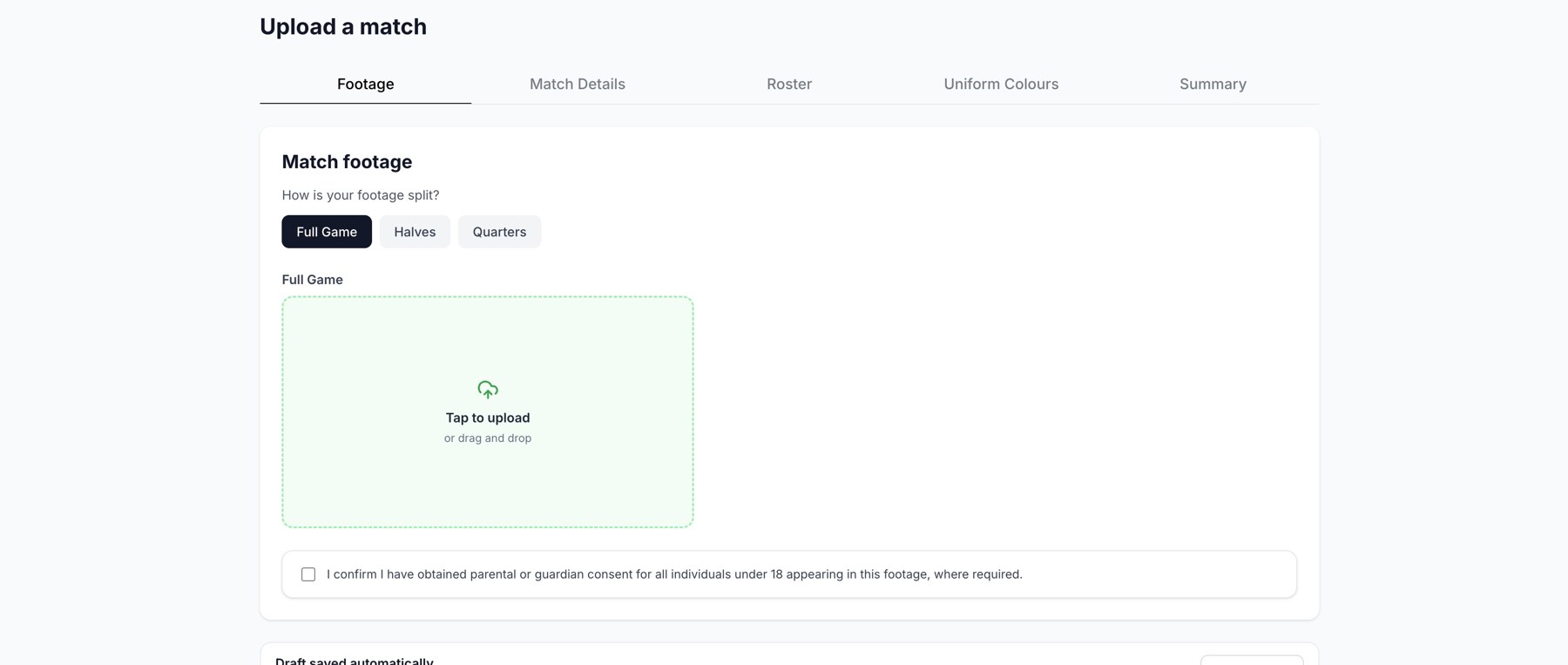
The Footage step of a regular dashboard upload.
After submission
The dashboard confirms a successful upload and the game moves into processing. Stats and analysis become available after processing completes. Upload completion and analysis completion are separate stages.
If Next or submission is unavailable
Check the required footage slots, consent checkbox, scores and date, and roster names and numbers. If credits or permissions are the issue, the club owner should review Credits or Settings > Members.
Clubs managed by a league
If the sidebar says your league manages uploads and credits, ask the league administrator to handle those actions. The ordinary club Upload and Credits controls are not available for that club.
Related guides
Was this helpful?