
Create a player’s season reel
Combine one player’s plays across filmed games.

Open the player’s season
In Highlights, search for the player or open their profile from Players. Use the season-reel link to open the player's plays across available filmed games.
This view depends on the player's game events being attached to the same roster profile. If part of the season is missing, check for duplicate or unknown-player records first.
Choose the story of the reel
Select the stat categories and tick the clips you want. You might focus on scoring, playmaking, or a mixture of positive plays. Adjust the seconds before and after events so each clip has enough context.
Review the preview from start to finish. A season reel can contain footage from different cameras and games, so check the crop and visibility of the action for every selected clip.
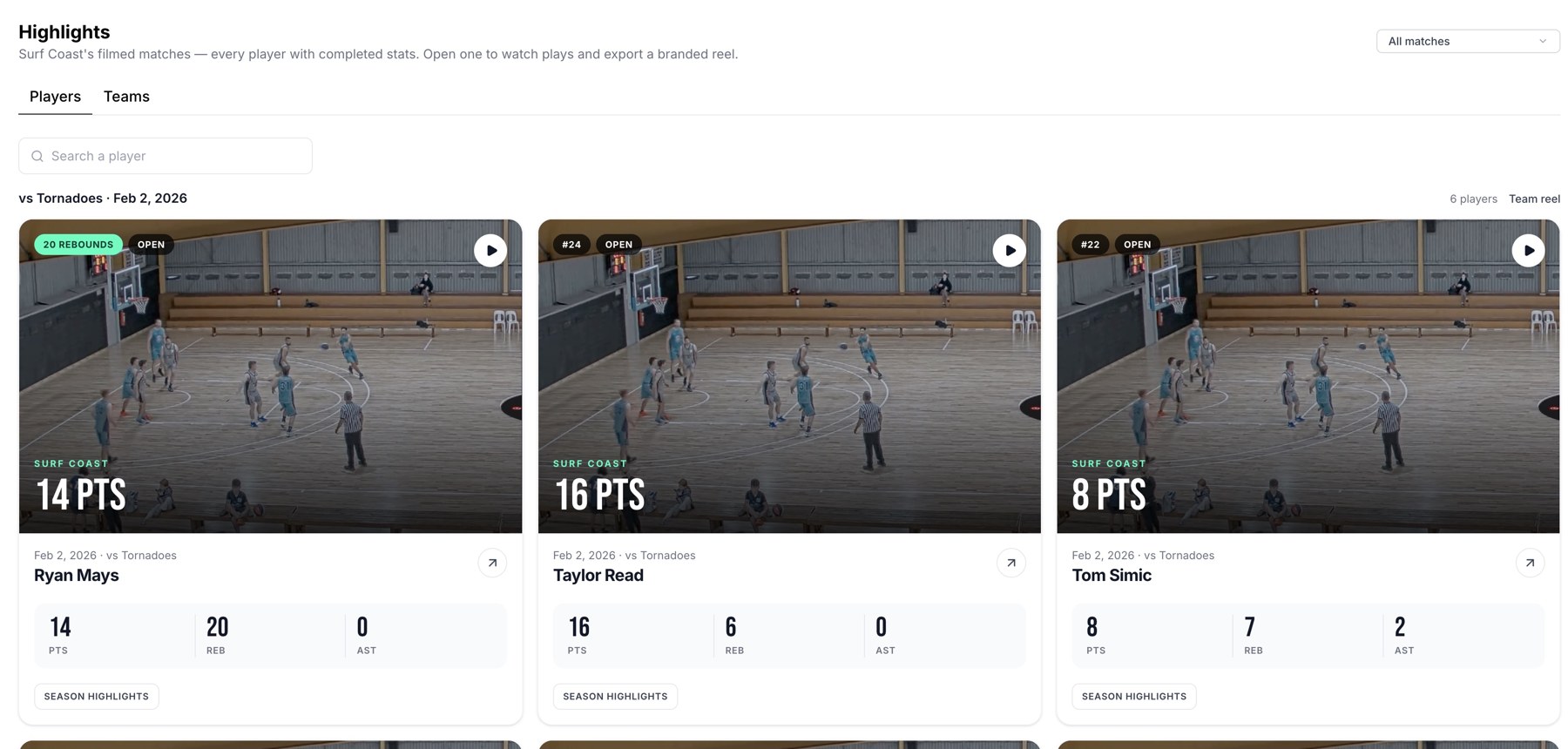
Browse player performances or use Teams to open a team reel.
Add the graphic and export
Review the player's name, photo, and team branding. Choose an output size and use the crop controls where available. Export a joined video, or choose ZIP for the joined reel plus individual clips.
Limits and missing games
An export includes at most 100 selected clips per job. Games still processing, games without playable footage, or events attached to a different player record will not provide the expected clips. Split a large season into several exports if needed.
Related guides
Was this helpful?