
Annotate and track players in Studio
Explain the play with freezes, drawings, labels, and player tracking.
Open Studio on a laptop or desktop with an active Studio subscription or eligible trial.
Freeze and explain a moment
Open a Studio clip with footage on the timeline. Move the playhead to the moment you want to explain. Use Freeze to create a teaching pause, or select Draw, Arrow, Shape, or Text and add an overlay to the video.
Arrows can be straight or curved. Shapes include rectangles, circles, triangles, and other marks. Choose a clear colour and keep the action visible beneath your explanation.
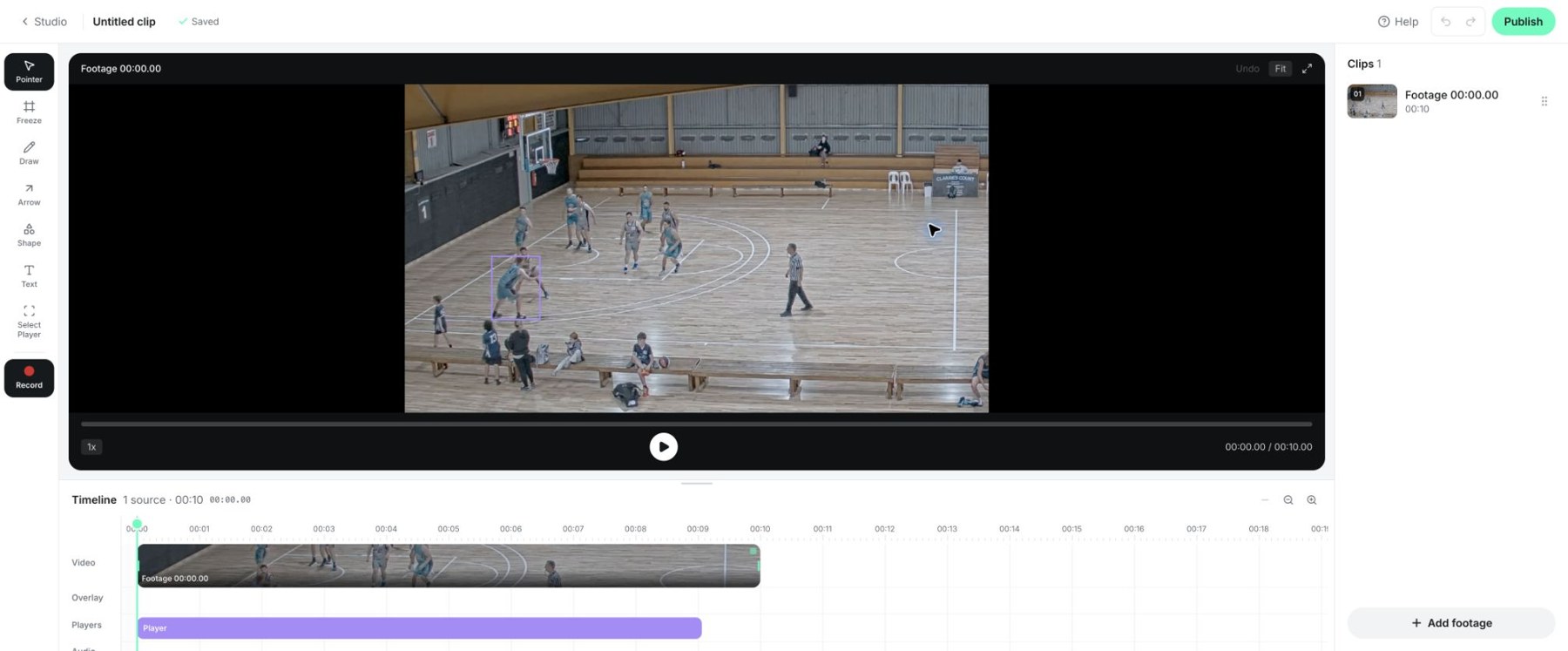
Studio's editor, footage, tools, and timeline.
Adjust an annotation
Select the overlay to open its inspector. Depending on the tool, adjust colour, stroke, line style, animation, text, and timing. Use the timeline to control when it appears and disappears. Duplicate, reorder, or remove overlays as needed, and review the result with playback.
Undo and Redo help recover an editing mistake. Check which item is selected before removing it.
Track a player
Choose Select Player at a clear frame, inspect the detected choices, and select the intended player. Confirm the tracking duration and wait for the result. Review the full interval before relying on it.
Use the player inspector to link a track to a roster player and configure its highlight or label where available. Adjust its appearance and duration so it supports the coaching point.
Improve a tracking result
Occlusion, motion blur, or players crossing can cause a track to drift. Start from a clearer frame, use a shorter interval, or retry if it follows the wrong person. Do not publish until the tracked interval has been checked.
The Select Player tool is not available while recording a live explanation. Prepare any tracked-player effects before starting that recording.
Related guides
Was this helpful?