
Watch a game and filter its clips
Move from the full recording to the plays you want to review.
Open the game viewer
Select a completed game in Matches. The viewer combines video with a Clips panel and supporting stats. A game must have playable footage to show its video.
Narrow the playlist
Use the Clips panel to filter by event category, player, and search text. Scoring filters can further narrow shot result and shot type. Where both teams are available, use the team or opposition filter.
Select a clip to jump to that play. Active filters can turn playback into a sequence of relevant moments, so clear the filters when you want to return to the full recording. Check all active filters if an expected play disappears.
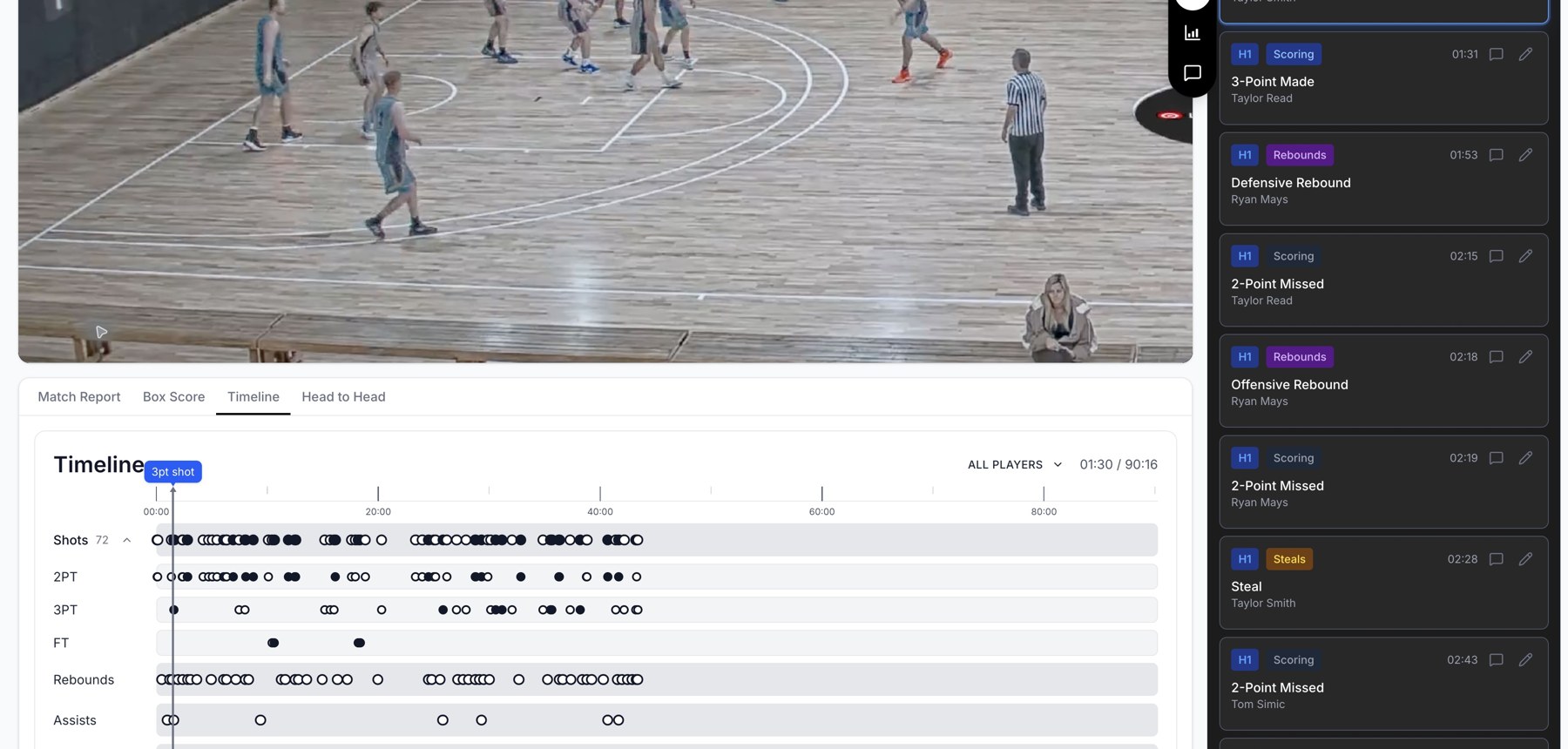
Game review combines footage, a clip list, and a timeline of events.
Explore the other views
| View | What it shows |
|---|---|
| Quick Stats | A compact statistics panel alongside the video. |
| Match Report | A written view of the game. |
| Box Score | Player totals for the game. |
| Timeline | Plays placed along the recording; available in the desktop layout. |
| Head to Head | Team comparison, with the available opposition information. |
Adjust clip timing
Open Clip timing settings. Set the seconds before and after each event to include more buildup or follow-through. The controls allow 0–10 seconds in half-second steps. Use the reset option to return to the defaults.
If footage will not play
Try another clip or segment, then reload the page. Check whether the game is still processing. If the issue persists, send support the game date, opponent, and the clip or period that fails.
Related guides
Was this helpful?